
Sites Commands
Commands for managing sites on B2C Commerce instances.
Authentication
Site reads and cartridge-path writes run over SCAPI (the site/sites API). Configure shortCode, tenantId, and sfcc.sites / sfcc.sites.rw on your API client to use it.
Cartridge-path writes (add/remove/set) require sfcc.sites.rw. In auto mode they temporarily fall back to the OCAPI Data API and then site archive import/export when direct API access is unavailable. The archive path requires job execution permissions for sfcc-site-archive-import and WebDAV write access to Impex/.
export SFCC_CLIENT_ID=your-client-id
export SFCC_CLIENT_SECRET=your-client-secret
export SFCC_TENANT_ID=zzxy_prd
export SFCC_SHORTCODE=kv7kzm78
Legacy OCAPI backend (deprecated)
OCAPI is deprecated and disabled on newer instances. Commands default to --api-backend auto, falling back on safe SCAPI capability/auth/request rejections; force a backend with --api-backend scapi|ocapi. For the OCAPI path, grant GET on /sites and /sites/*, and POST/PUT/DELETE on /sites/*/cartridges for cartridge-path writes.
For complete setup instructions, see the Authentication Guide.
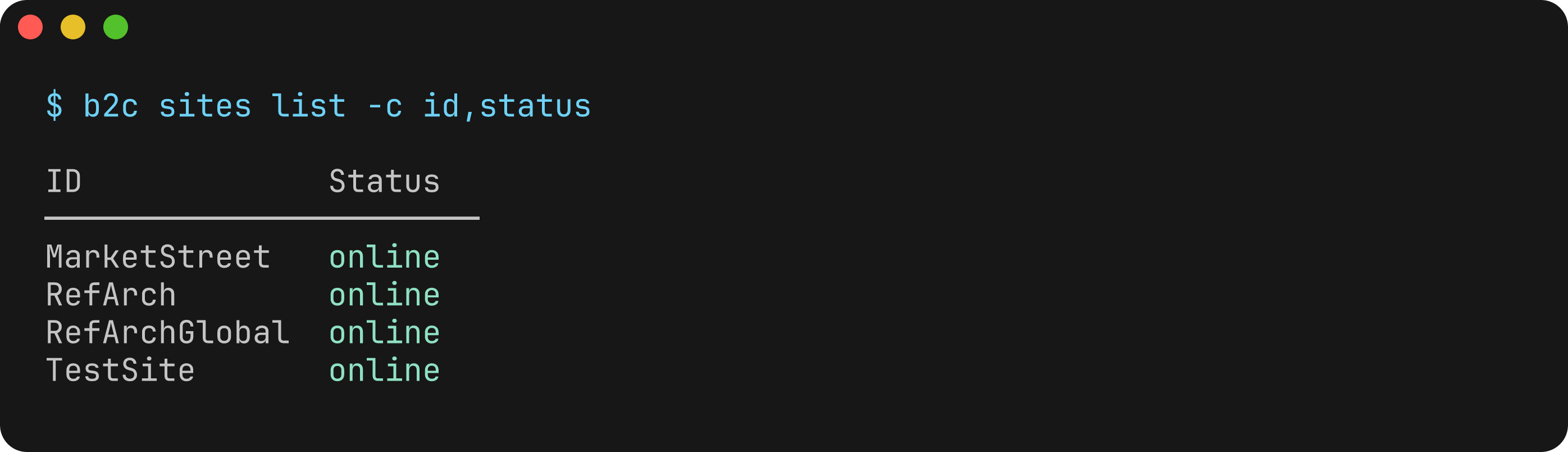
b2c sites list
List sites on a B2C Commerce instance.
Usage
b2c sites listFlags
Uses global instance and authentication flags.
Examples
# List sites on an instance
b2c sites list --server my-sandbox.demandware.net --client-id xxx --client-secret yyy

# Using environment variables
export SFCC_SERVER=my-sandbox.demandware.net
export SFCC_CLIENT_ID=your-client-id
export SFCC_CLIENT_SECRET=your-client-secret
b2c sites list
Output
The command displays a list of sites with their:
- Site ID
- Display name
- Status
Example output:
Found 2 site(s):

  RefArch
    Display Name: Reference Architecture
    Status: online

  SiteGenesis
    Display Name: Site Genesis
    Status: online
Cartridge Commands
Manage the cartridge path for a site — the ordered list of cartridges that are active on a storefront. Use sites cartridges or the singular alias sites cartridge.
Business Manager
Use the --bm flag as a shorthand for --site-id Sites-Site to manage the Business Manager cartridge path. BM updates always use site archive import since OCAPI direct updates are not supported for the BM site.
Automatic Fallback
If OCAPI permissions for /sites/*/cartridges are not available, cartridge commands automatically fall back to site archive import/export. This means the commands work even without specific cartridge OCAPI permissions, as long as job execution and WebDAV access are configured.
b2c sites cartridges list
List the cartridge path for a site.
Usage
b2c sites cartridges list --site-id <site-id>
b2c sites cartridges list --bm
Flags
| Flag | Description |
|---|---|
--site-id <id> | Site ID (e.g. RefArch) |
--bm | Use Business Manager site (Sites-Site) |
--json | Output as JSON |
One of --site-id or --bm is required.
Examples
# List cartridge path for a storefront site
b2c sites cartridges list --site-id RefArch

# List Business Manager cartridge path
b2c sites cartridges list --bm

# JSON output for automation
b2c sites cartridges list --site-id RefArch --json
b2c sites cartridges add
Add a cartridge to a site's cartridge path.
Usage
b2c sites cartridges add <cartridge> --site-id <site-id> [--position <position>] [--target <target>]Arguments
| Argument | Description |
|---|---|
cartridge | Name of the cartridge to add |
Flags
| Flag | Description |
|---|---|
--site-id <id> | Site ID (e.g. RefArch) |
--bm | Use Business Manager site (Sites-Site) |
--position <pos> | Position: first (default), last, before, after |
--target <name> | Target cartridge (required when position is before or after) |
--json | Output as JSON |
Examples
# Add to beginning of path (default)
b2c sites cartridges add plugin_applepay --site-id RefArch

# Add to end
b2c sites cartridges add plugin_applepay --site-id RefArch --position last

# Add after a specific cartridge
b2c sites cartridges add plugin_applepay --site-id RefArch --position after --target app_storefront_base

# Add to Business Manager
b2c sites cartridges add bm_extension --bm --position first
b2c sites cartridges remove
Remove a cartridge from a site's cartridge path.
Destructive Operation
This command modifies the site cartridge path. It is blocked in safe mode — set the SFCC_SAFETY_LEVEL=NONE environment variable or update the "safety" section in your dw.json configuration file to allow it.
Usage
b2c sites cartridges remove <cartridge> --site-id <site-id>Arguments
| Argument | Description |
|---|---|
cartridge | Name of the cartridge to remove |
Flags
| Flag | Description |
|---|---|
--site-id <id> | Site ID (e.g. RefArch) |
--bm | Use Business Manager site (Sites-Site) |
--json | Output as JSON |
Examples
b2c sites cartridges remove old_cartridge --site-id RefArch
b2c sites cartridges remove bm_extension --bm
b2c sites cartridges set
Replace the entire cartridge path for a site.
Destructive Operation
This command replaces the entire cartridge path. It is blocked in safe mode — set the SFCC_SAFETY_LEVEL=NONE environment variable or configure "safety": {"level": "NONE"} in your dw.json to allow it.
Usage
b2c sites cartridges set <cartridges> --site-id <site-id>Arguments
| Argument | Description |
|---|---|
cartridges | New cartridge path (colon-separated, e.g. cart1:cart2:cart3) |
Flags
| Flag | Description |
|---|---|
--site-id <id> | Site ID (e.g. RefArch) |
--bm | Use Business Manager site (Sites-Site) |
--json | Output as JSON |
Examples
b2c sites cartridges set "app_storefront_base:plugin_applepay:plugin_wishlists" --site-id RefArch
b2c sites cartridges set "bm_ext1:bm_ext2" --bm