
Custom APIs
Check which SCAPI Custom API endpoints are active and investigate registration failures.
See Salesforce's Custom API Status Reports for registration behavior and error explanations.
Global Custom APIs Flags
These flags are available on all Custom APIs commands:
| Flag | Environment Variable | Description |
|---|---|---|
--tenant-id | SFCC_TENANT_ID | (Required) Organization/tenant ID |
--short-code | SFCC_SHORTCODE | SCAPI short code |
--client-id | SFCC_CLIENT_ID | Account Manager API Client ID |
--client-secret | SFCC_CLIENT_SECRET | Account Manager API Client secret |
Additional authentication flags (--auth-methods, --user-auth, --account-manager-host, --jwt-cert, --jwt-key, --jwt-passphrase) and logging flags (--log-level, --debug, --jsonl) are also available. See the Authentication Guide for credential configuration, or run any command with --help for the complete flag list.
Authentication
Custom APIs commands require an Account Manager API Client with OAuth credentials.
Required Scopes
The following scopes are automatically requested by the CLI:
| Scope | Description |
|---|---|
sfcc.custom-apis | Access to Custom APIs endpoints |
SALESFORCE_COMMERCE_API:<tenant_id> | Tenant-specific access scope |
Configuration
# Set credentials via environment variables
export SFCC_CLIENT_ID=my-client
export SFCC_CLIENT_SECRET=my-secret
export SFCC_TENANT_ID=zzxy_prd
export SFCC_SHORTCODE=kv7kzm78

# Or provide via flags
b2c scapi custom status --client-id xxx --client-secret xxx --tenant-id zzxy_prd
For complete setup instructions, see the Authentication Guide.
b2c scapi custom status
Get the status of Custom API endpoints for an organization. Shows which endpoints are active and which failed to register.
Usage
b2c scapi custom status --tenant-id <TENANT_ID>Flags
| Flag | Description | Default |
|---|---|---|
--tenant-id | (Required) Organization/tenant ID | |
--status, -s | Filter by endpoint status (active, not_registered) | |
--group-by, -g | Group output by field (type or site) | |
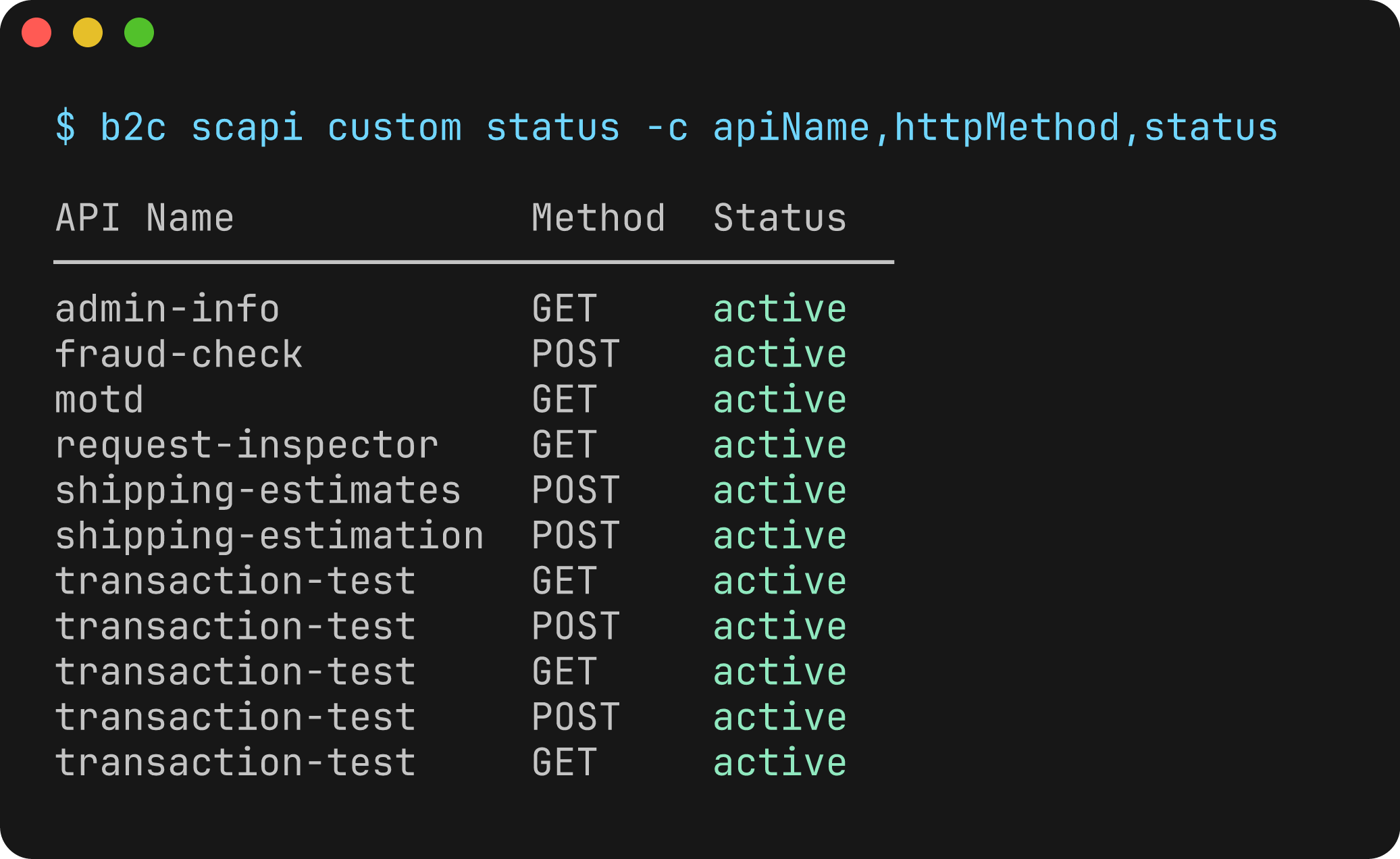
--columns, -c | Columns to display (comma-separated) | |
--extended, -x | Show all columns including extended fields | false |
--json | Output results as JSON | false |
Available Columns
Default columns: type, apiName, endpointPath, httpMethod, status
Extended columns (shown with --extended): sites, securityScheme, operationId, schemaFile, implementationScript, errorReason, id, apiVersion, cartridgeName
API Types
The type column shows a human-readable API type based on the security scheme:
| Security Scheme | Type |
|---|---|
AmOAuth2 | Admin |
ShopperToken | Shopper |
Examples
# List all Custom API endpoints
b2c scapi custom status --tenant-id zzxy_prd

# Filter by status
b2c scapi custom status --tenant-id zzxy_prd --status active
b2c scapi custom status --tenant-id zzxy_prd --status not_registered

# Group by API type (Admin/Shopper)
b2c scapi custom status --tenant-id zzxy_prd --group-by type

# Group by site
b2c scapi custom status --tenant-id zzxy_prd --group-by site

# Show extended columns
b2c scapi custom status --tenant-id zzxy_prd --extended

# Custom columns
b2c scapi custom status --tenant-id zzxy_prd --columns type,apiName,status,sites

# Debug failed registrations
b2c scapi custom status --tenant-id zzxy_prd --status not_registered --columns type,apiName,endpointPath,errorReason

# Output as JSON
b2c scapi custom status --tenant-id zzxy_prd --json
Output
Default table output:
Active code version: version1
Found 5 endpoint(s):

Type     API Name      Path        Method  Status
───────────────────────────────────────────────────────────
Shopper  loyalty-info  /customers  GET     active
Shopper  loyalty-info  /points     GET     active
Admin    inventory     /stock      GET     active
Admin    inventory     /stock      PUT     active
Shopper  wishlist      /items      POST    not_registered
Grouped by type:
Admin APIs:
API Name   Path    Method  Status
─────────────────────────────────────────
inventory  /stock  GET     active
inventory  /stock  PUT     active

Shopper APIs:
API Name      Path        Method  Status
─────────────────────────────────────────────
loyalty-info  /customers  GET     active
loyalty-info  /points     GET     active
wishlist      /items      POST    not_registered
Grouped by site:
Site: RefArch
Type     API Name      Path        Method  Status
───────────────────────────────────────────────────────────
Shopper  loyalty-info  /customers  GET     active
Shopper  loyalty-info  /points     GET     active
Admin    inventory     /stock      GET     active

Site: SiteGenesis
Type     API Name   Path    Method  Status
─────────────────────────────────────────────────
Admin    inventory  /stock  GET     active
Admin    inventory  /stock  PUT     active
Notes
- Endpoints are rolled up by site: if the same endpoint is active on multiple sites, the sites are combined into a comma-separated list (visible with
--extendedor--columns sites) - The
errorReasoncolumn (extended) shows why an endpoint failed to register - Use
--group-by siteto see which endpoints are deployed to each site