
MCP (Model Context Protocol)
The B2C MCP server connects your AI assistant to Salesforce B2C Commerce tools, documentation, and workflow skills. Build and debug storefronts, deploy code, and manage your sites through requests in your assistant.
Your assistant can find and read guidance from our B2C Commerce, B2C CLI, operations runbooks, and Storefront Next skill collections through the skills_read tool. No separate skills installation is needed. Documentation and skills work without B2C Commerce credentials; connected tasks use your existing B2C configuration.
Set up your assistant
Choose your assistant. Plugin installation is recommended where supported; manual setup includes the same tools, documentation, and skills. Our plugins use the open Agent Plugins standard.
Claude
Install the plugin Recommended
claude plugin marketplace add SalesforceCommerceCloud/b2c-developer-tooling
claude plugin install b2c-dx-mcp@b2c-developer-tooling --scope project
Start a new Claude Code session in your project. Use --scope user instead for all projects.
Manual MCP setup
From your project directory:
claude mcp add --transport stdio --scope project b2c-dx-mcp -- npx -y @salesforce/b2c-dx-mcp@latestStart a new session. Use --scope user instead for all projects. See Claude Code MCP setup.
Codex
Install the plugin Recommended
codex plugin marketplace add SalesforceCommerceCloud/b2c-developer-tooling
codex plugin add b2c-dx-mcp@b2c-developer-tooling
Start a new Codex session in your project. This setup also works with the Codex IDE extension and the ChatGPT Work desktop app.
Manual MCP setup
codex mcp add b2c-dx-mcp -- npx -y @salesforce/b2c-dx-mcp@latestOr add this to ~/.codex/config.toml (or $CODEX_HOME/config.toml if customized):
[mcp_servers.b2c-dx-mcp]
command = "npx"
args = ["-y", "@salesforce/b2c-dx-mcp@latest"]
Start a new session. See Codex MCP configuration.
VS Code
Install the plugin Recommended
- Open the Command Palette (
Cmd/Ctrl+Shift+P) and run Chat: Install Plugin from Source. - Enter
SalesforceCommerceCloud/b2c-developer-tooling. - Select b2c-dx-mcp and follow the installation prompts.
- Start a new chat in GitHub Copilot.
Manual MCP setup
Add this to .vscode/mcp.json in your workspace:
{
  "servers": {
    "b2c-dx-mcp": {
      "type": "stdio",
      "command": "npx",
      "args": ["-y", "@salesforce/b2c-dx-mcp@latest"]
    }
  }
}
See VS Code MCP setup.
Cursor
Reload the MCP server in Cursor after installation.
Manual MCP setup
Add this to .cursor/mcp.json in your project:
{
  "mcpServers": {
    "b2c-dx-mcp": {
      "command": "npx",
      "args": ["-y", "@salesforce/b2c-dx-mcp@latest"]
    }
  }
}
For all projects, use ~/.cursor/mcp.json instead.
OpenCode
Add this to opencode.json in your project:
{
  "mcp": {
    "b2c-dx-mcp": {
      "type": "local",
      "command": ["npx", "-y", "@salesforce/b2c-dx-mcp@latest"],
      "enabled": true
    }
  }
}
Restart OpenCode. For all projects, use ~/.config/opencode/opencode.json. See OpenCode MCP setup.
Gemini
From your project directory, run:
gemini mcp add --scope project b2c-dx-mcp -- npx -y @salesforce/b2c-dx-mcp@latestStart a new Gemini CLI session. Use --scope user instead for all projects. See Gemini CLI MCP setup.
For Claude Desktop, Copilot CLI, ChatGPT online, and other clients, see Other clients.
B2C Commerce documentation
Ask your assistant to find and explain Salesforce documentation for the task at hand. Search spans the Script API, storefront and API guides, standard job steps, XML schemas, and Salesforce Help for administration and merchandising. Get help understanding code, planning a site change, or checking Business Manager settings, with links to the relevant references. No B2C Commerce credentials are needed.
How do promotion exclusivity and rank affect which discounts a shopper receives? Explain with an example and link to the Salesforce documentation.
Explore documentation search. Also available through the B2C CLI.
Developer Tasks
- Build: find platform documentation and apply B2C Commerce development patterns.
- Debug: investigate logs and inspect live cartridge execution with breakpoints, variables, and call stacks.
- Deploy: upload whole cartridges or selected code files and publish Managed Runtime storefront bundles.
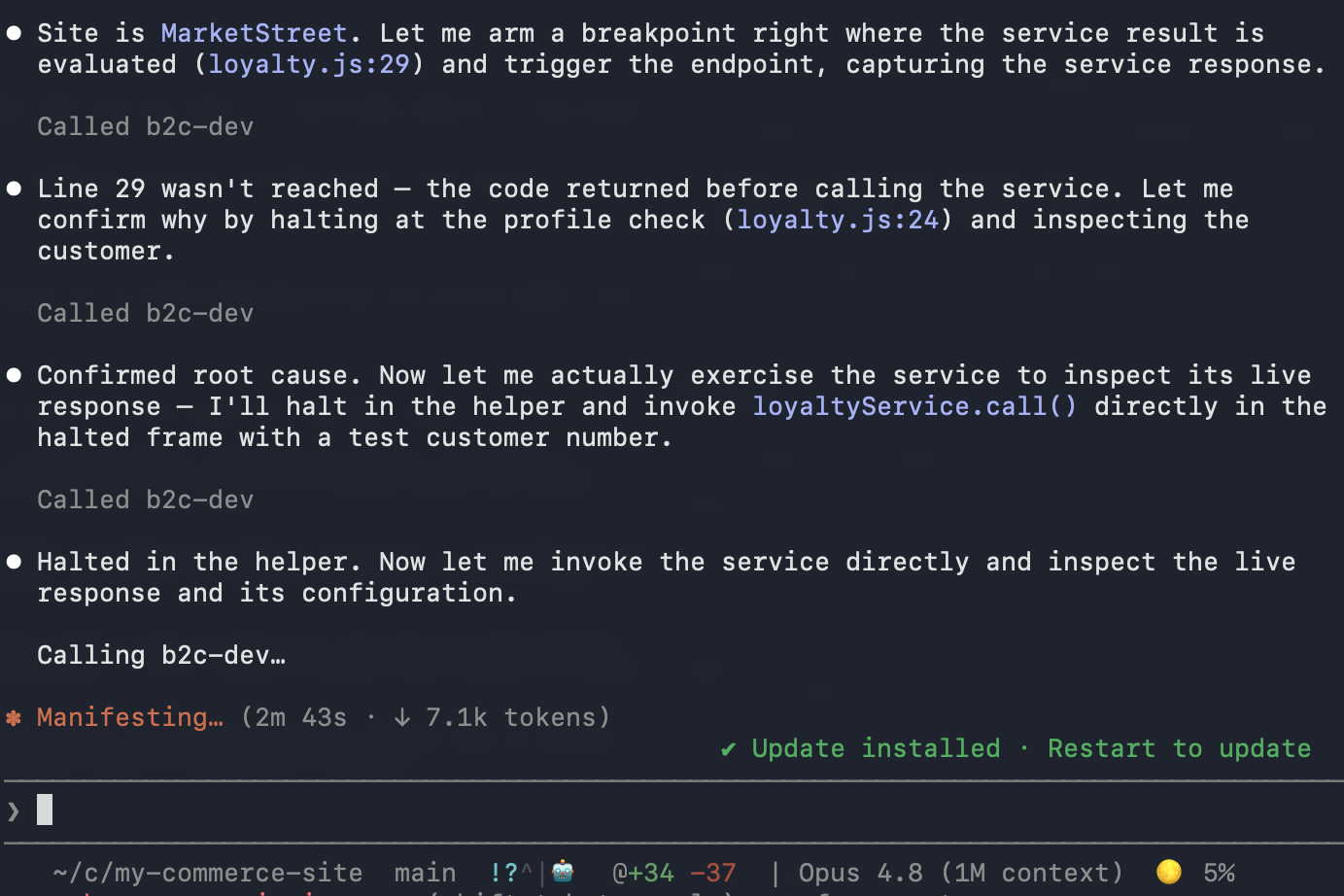
This controller returns the wrong result in my sandbox. Set a breakpoint and inspect the variables while I reproduce the request. Explain what happened, then resume execution and disconnect. Don't change the code.
Debug with your assistant. Breakpoints pause requests; use a sandbox for debugging.
Administrator and Merchant Tasks
SCAPI code mode covers nearly 600 Salesforce Commerce API operations. Review campaigns and promotions, investigate job failures, or create products and assign catalog categories.
Included operations runbooks help your assistant review scheduled work, investigate checkout failures, and prepare evidence for your administrator, developer, integration provider, or Salesforce Support. Review successful and failed job runs, inspect execution steps and logs, check active code versions and site cartridge paths, and transfer instance files without a separate CLI installation.
Review last night's jobs for my configured site. Flag recurring failures or incomplete updates and prepare a handoff for anything that needs attention. Don't rerun jobs or change data.
Summarize the promotions in campaign spring-sale. Flag schedule conflicts and disabled promotions.
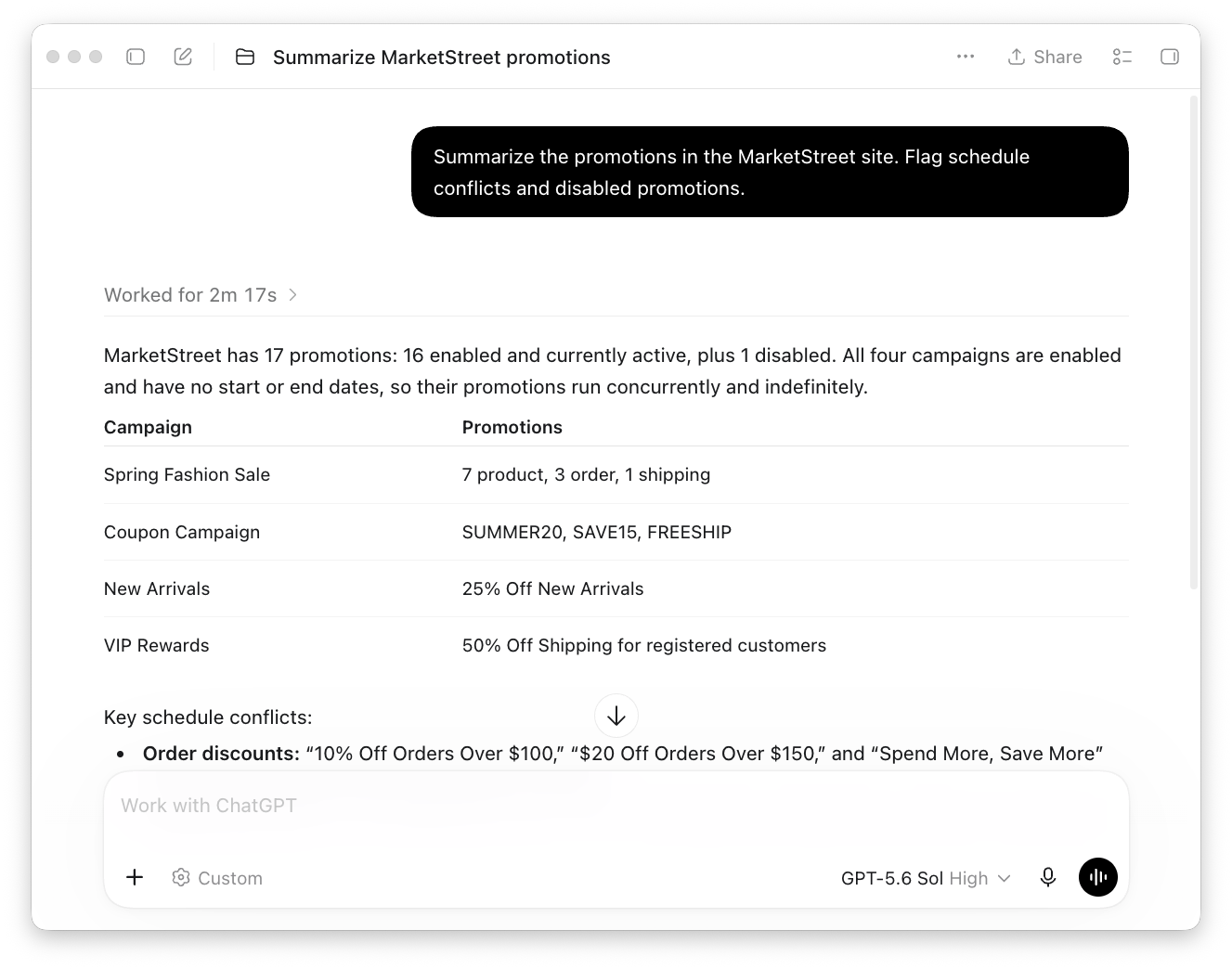
Standard and custom Admin APIs support live requests. Shopper APIs are available for reference.
CIP analytics helps explain sales changes, uncover search and promotion opportunities, and investigate API performance. Ask for a ready-to-use report or a custom analysis without setting up the CLI or a separate SQL client.
Compare daily sales and average order value for my site over the last two complete weeks. Explain the date range and any gaps in the data.
Configuration and access
Connected tasks use your B2C Commerce configuration and account permissions. See authentication for credential setup and Security and Access for approvals, credential handling, and Safety Mode.
The default installation includes all toolsets. Advanced configuration lets you choose specific tools or toolsets for manual installations.
Tools and skills
Browse MCP Tools for capabilities and tool names, or Agent Skills for the included collections, optional additions, and standalone installation.
Optional project instructions can help your assistant recognize when to use B2C tools and skills.
Other clients
Claude Desktop
Open Settings > Developer > Edit Config and add:
{
  "mcpServers": {
    "b2c-dx-mcp": {
      "command": "npx",
      "args": ["-y", "@salesforce/b2c-dx-mcp@latest"]
    }
  }
}Save, then fully quit and reopen Claude Desktop. See Claude Desktop local server setup.
Copilot CLI
Install the plugin:
copilot plugin marketplace add SalesforceCommerceCloud/b2c-developer-tooling
copilot plugin install b2c-dx-mcp@b2c-developer-toolingStart a new Copilot session in your project.
Manual MCP setup
copilot mcp add b2c-dx-mcp -- npx -y @salesforce/b2c-dx-mcp@latestChatGPT online
ChatGPT online uses a separate connection from the desktop apps. To connect this local MCP server, follow OpenAI's Secure MCP Tunnel setup and configure a stdio server with:
| Setting | Value |
|---|---|
| Command | npx |
| Arguments | -y @salesforce/b2c-dx-mcp@latest |
The tunnel requires OpenAI Platform permissions and access to ChatGPT developer mode. Follow OpenAI's ChatGPT connection instructions to select your tunnel. Keep the tunnel client running on the machine with your B2C Commerce configuration.
Other MCP clients
Add a local / stdio server using your client's MCP settings:
| Setting | Value |
|---|---|
| Name | b2c-dx-mcp |
| Command | npx |
| Arguments | -y @salesforce/b2c-dx-mcp@latest |
For clients that accept an mcpServers configuration:
{
  "mcpServers": {
    "b2c-dx-mcp": {
      "command": "npx",
      "args": ["-y", "@salesforce/b2c-dx-mcp@latest"]
    }
  }
}Clients use different configuration locations and formats. Their setup guides cover where to register the server:
| Client | Setup guide |
|---|---|
| Windsurf | Cascade MCP settings |
| Cline | MCP servers |
| JetBrains AI Assistant | MCP configuration |
| Zed | MCP servers |
| Amp | MCP configuration |
| Warp | MCP servers |
Restart the connection after configuration. Clients that accept only a remote server URL need a compatible bridge or tunnel; this package runs locally.
Windows manual setup
If your client cannot launch npx on Windows, use cmd with these arguments in its manual server configuration:
"command": "cmd",
"args": ["/c", "npx", "-y", "@salesforce/b2c-dx-mcp@latest"]
For clients with a command array, such as OpenCode, use ["cmd", "/c", "npx", "-y", "@salesforce/b2c-dx-mcp@latest"].
Updates and customization
Use your client's plugin update controls to update a plugin installation, then start a new session. For direct installations, @latest follows the current npm release; use a specific version when your team needs a fixed version.
The default installation includes all toolsets. If you want a smaller selection or a fixed configuration, see advanced manual configuration. Choose one installation method per client to avoid duplicate B2C servers.
Troubleshooting
| Problem | What to check |
|---|---|
| Server does not start | Run node --version and npx --version in the environment launching your client. |
spawn npx ENOENT | The client cannot find Node.js. Launch the editor from your terminal or configure the absolute path to npx in a direct installation. |
| Plugin is unavailable | Update the client and check whether your organization permits the marketplace. Direct setup is available if plugins are not supported. |
| Wrong project or instance | Specify the intended project or named instance in your request. Check configuration defaults if needed. |
| Authentication fails | Check the access needed for the capability, then follow authentication setup. |